This section provides comprehensive information about the WooCommerce Account Pages plugin, including installation, setup, configuration, and everything else needed to maximize its potential.
Installation
Automatic Installation from the WordPress Dashboard
- Login to your admin panel
- Navigate to Plugins -> Add New
- Search Account Pages for WooCommerce
- Click install and activate respectively.
User Guides
How to Add a New Account Page
After installing and activating WooCommerce Account Pages, adding a new page to your WooCommerce account area is straightforward.
To do this, follow these steps:
- Login to your WordPress admin area.
- Go to to Woo Account Pages -> Add New.
- Enter a title for your new account page. For this example, let’s name it “User Guides“.
- Next, add some content to this page. You can add anything to this page using the block editor.
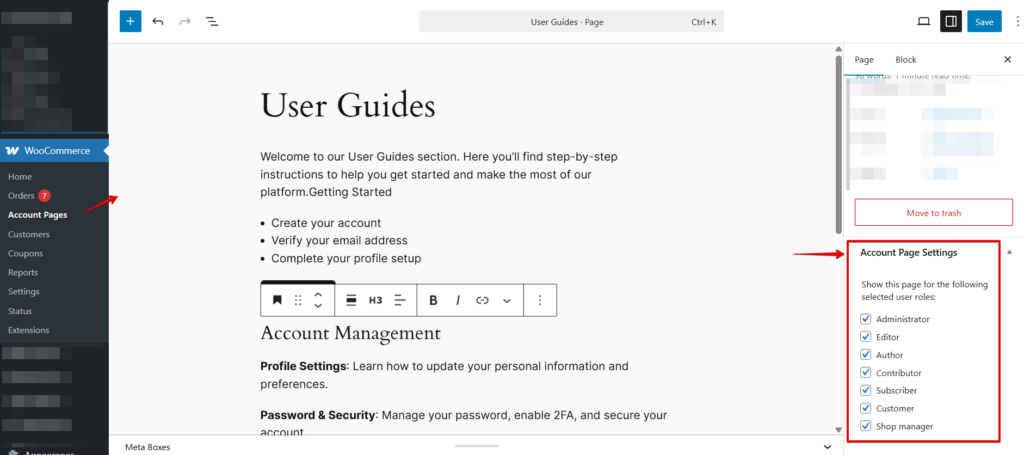
- If you want to, you can choose which user roles can access this page. This is particularly useful for displaying specific content to certain user roles.
- When you are ready, click on the Publish button.
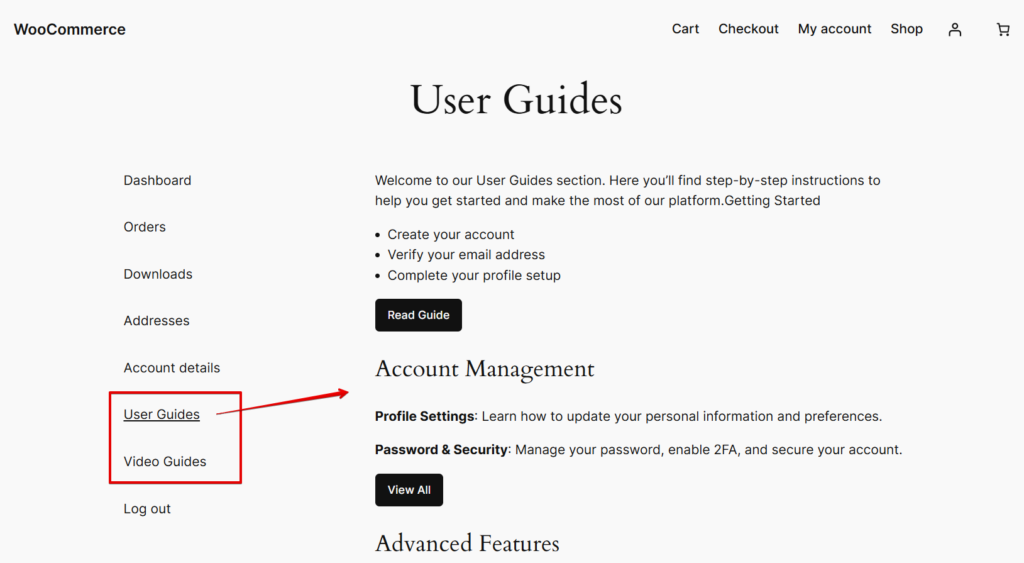
When you access your account area on your site’s front end, you will see your new page in the navigation.
Change Page Order
Follow these steps to rearrange the order of your pages
1. Enable Page Attributes (if needed)
- Click on any page to edit it.
- In the right sidebar, look for the Page settings panel.
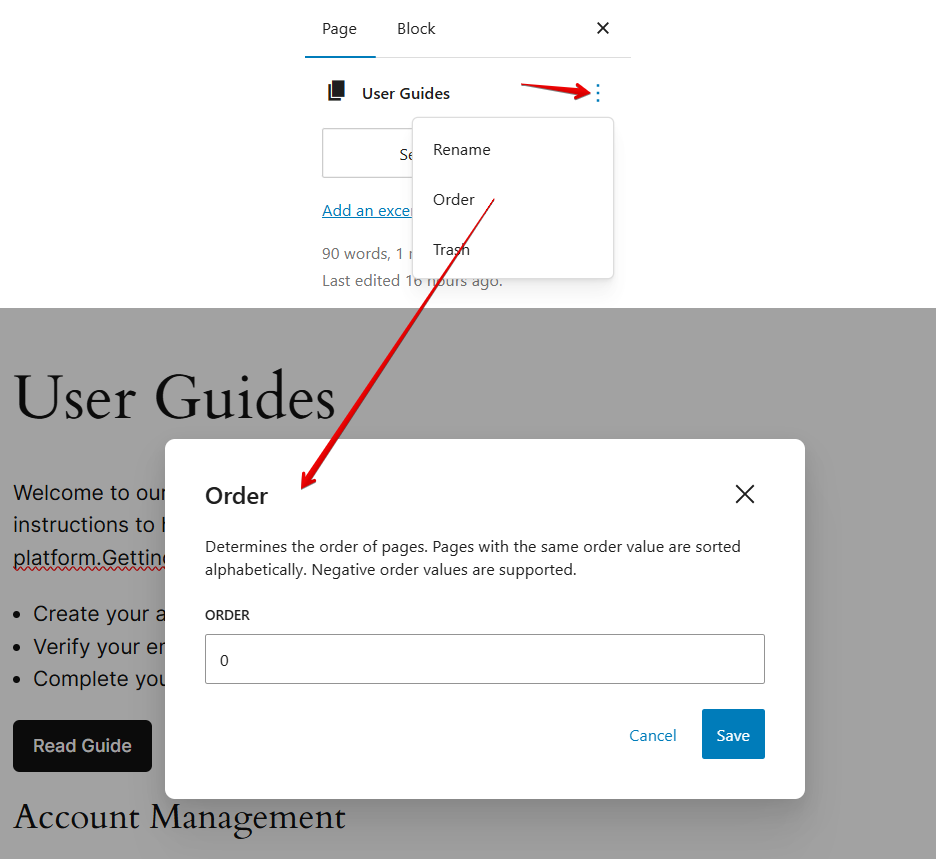
- Find the Order field under Page Attributes.
- If you don’t see it, click the ⋮ (three dots) in the top-right corner → Preferences → enable Page Attributes.
2. Set the Page Order
- In the Order field, enter a number:
- Lower numbers appear first (e.g., 0, 1, 2…).
- Higher numbers appear later.
- Example:
- Home → 0
- About → 1
- Contact → 2
3. Update the Page
- Click the Update button to save your changes.
4. Repeat for Other Pages
- Adjust the order number for each page as needed to achieve your desired structure.
Troubleshooting
The new page is not appearing in the “My Account” area.
If you’ve just created a new page and it’s not showing in the “My Account” area, you may need to refresh your permalinks.
To do this, follow these steps:
- Log in to your WordPress dashboard
- Go to Settings → Permalinks
- Don’t change anything (or choose your preferred structure)
- Click Save Changes
- Reload the “My Account” page on the frontend. Now you will see the page.